Getting Started with Your iPhone 16 or iPhone 16 Plus
Congratulations on purchasing the latest iPhone 16 or iPhone 16 Plus. This device is packed with exciting features and capabilities that will make your mobile experience even more enjoyable. In this article, we’ll take you through a comprehensive guide on how to use your new iPhone, covering everything from the basics to advanced features.
Unboxing and Initial Setup
Before you start using your iPhone, it’s essential to take a few precautions to protect your device. We recommend applying a screen protector and a case to prevent scratches and damage. This will not only maintain the aesthetic appeal of your iPhone but also help you resell or trade it in the future.
Exploring the iPhone’s Design and Features
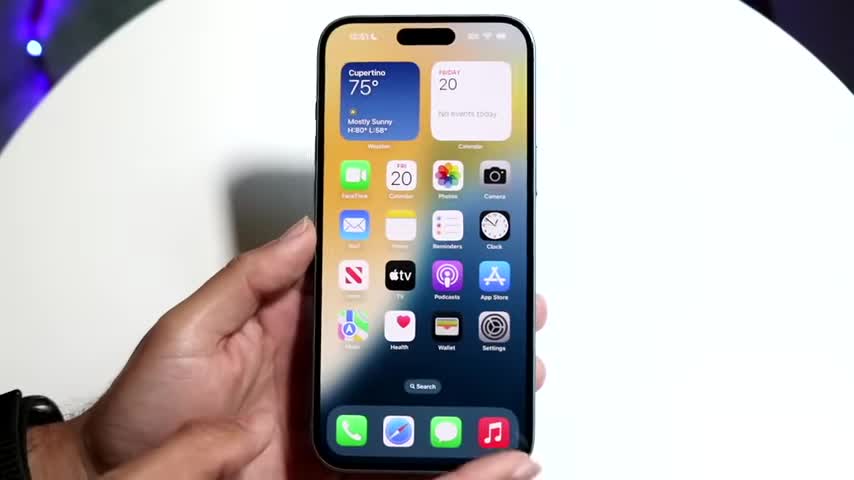
The iPhone 16 and iPhone 16 Plus boast a stunning display, with a dynamic island at the top that shows notifications and pop-up views. The device also features a volume button, an action button, and a dedicated camera button on the right side. The action button can be customized to perform various tasks, such as turning the ringer on or off. The charging port and speaker grills are located at the bottom of the device, and the iPhone also supports wireless charging.
Setting Up Your iPhone
To turn on your iPhone, simply click the power button, tap on the display, or use the “raise to wake” feature. Once your iPhone is on, you’ll be greeted with the lock screen, which displays your cell service provider, Wi-Fi signal, battery percentage, and any notifications you may have. You can customize your lock screen by adding widgets, changing the wallpaper, and modifying the toggles at the bottom.
Navigating the Home Screen
The home screen is where you’ll spend most of your time on your iPhone. You can customize it by adding widgets, changing the wallpaper, and rearranging app icons. The dock at the bottom of the screen remains the same, and you can add or remove apps from it as needed. You can also use the search bar to find specific apps or features on your iPhone.
Using Apps and Multitasking
Apps on the iPhone are straightforward to use, and you can easily switch between them using the app switcher. You can also use the “back” gesture to navigate between apps, which is a convenient feature that eliminates the need to constantly go back to the home screen. The app library is where all your apps are stored, and you can access it by swiping up on the home screen.
Control Center and Notifications
The control center is a customizable panel that allows you to quickly access various features and settings on your iPhone. You can access it by swiping down from the top right corner of the screen. The notification drawer, on the other hand, is where you’ll find all your notifications, and you can access it by swiping down from the top left corner of the screen.
Camera and Photography
The camera on the iPhone 16 and iPhone 16 Plus is an exciting feature, and the dedicated camera button makes it easy to access. You can use the camera button to take photos, record videos, and even zoom in and out. The camera app is also customizable, and you can access various features and settings by tapping on the screen.
Settings and Customization
The settings app is where you can customize your iPhone to your liking. You can access it by searching for “settings” in the search bar or by finding it in the app library. From here, you can update your iPhone’s software, customize your home screen, and modify various settings and features.
Updating Your iPhone’s Software
It’s essential to keep your iPhone’s software up to date to ensure you have the latest features and security patches. To update your iPhone, go to the settings app, click on “general,” and then select “software update.” If an update is available, click on “update now” to download and install it.
Conclusion
That’s it! With this comprehensive guide, you should now be familiar with the basics of using your iPhone 16 or iPhone 16 Plus. Remember to take care of your device by applying a screen protector and case, and don’t hesitate to explore the various features and settings to customize your iPhone to your liking. If you have any questions or need further assistance, feel free to ask in the comment section below.
Leave a Reply