How To Use Your iPhone 16! (Complete Beginners Guide)
So you may have just picked up the beautiful iPhone 16 or iPhone 16 Plus. And I’ll go and give you a quick breakdown on exactly how to use this particular iPhone. It’s a beautiful device, whether you have the Plus or the standard model. They’re both very good. They’re going to last you many, many years to come. So it’s probably good if you go ahead and actually understand how to use it now rather than later. So on the front side, you’re going to be getting your display.
It’s going to look beautiful. The first thing I’d recommend doing is putting a screen protector and a case on your phone. So find whatever screen protector you can find, get a case, whatever case you can buy, and slap it on these things. It’s probably for the better in my personal opinion, just so you don’t put any scratches on it. And if you plan on trading it in or reselling it in the future, you can maintain as much value as you can.
The top of the display, you’ll be getting your dynamic island. We’ll demonstrate this in a different video, but basically it shows you notifications and a pop-up view, which is actually very nice. You have a little bit of bezel around the whole entire display. On the side, you’re getting your volume button and your action button. So this action button, if you hold it down, it’ll go and do different things. You can have it, you know, assigned to different aspects all over the phone.
So you can hold it down and, you know, basically turn your ringer on or off just by holding it down. If you volume up and down button right here, you have nothing at the top. At the bottom, you have your charging port with your speaker grills. So this is your charging port. This is where you can plug in to charge your phone. Your phone also supports wireless charging.
on the right side of your iphone 16 and or 16 plus you will have this new dedicated camera button so what this does is if you go and click on it it’ll go and open up the camera you can also zoom in and zoom out by basically you know kind of going like this over the camera or over the button so it’s really cool you have that type of capability there as well you have your power button aka your side button which invokes siri and apple intelligence as well so that is right there.
On the backside, you’re getting your frosted glass back. So this is frosted. It feels very, very premium. You’re getting your dual camera setup in the top left corner. So this is a wide and ultra-wide camera. You’re getting your flash right here as well. You have your MagSafe capability, your wireless charging areas right here as well. You’re getting IP certification inside of your iPhone. You’re getting a very good, well-built phone.
So like I said, put a case, put a screen protector on it, and then you’ll basically be good to go. Now to turn on your iPhone, you have a few different options. You can click the power button to turn it on, or you can go ahead and basically tap onto the display to turn it on. Or if you have a race to wake, you can literally just look at your iPhone and it will go and turn on as well. So you have that type of capability too.
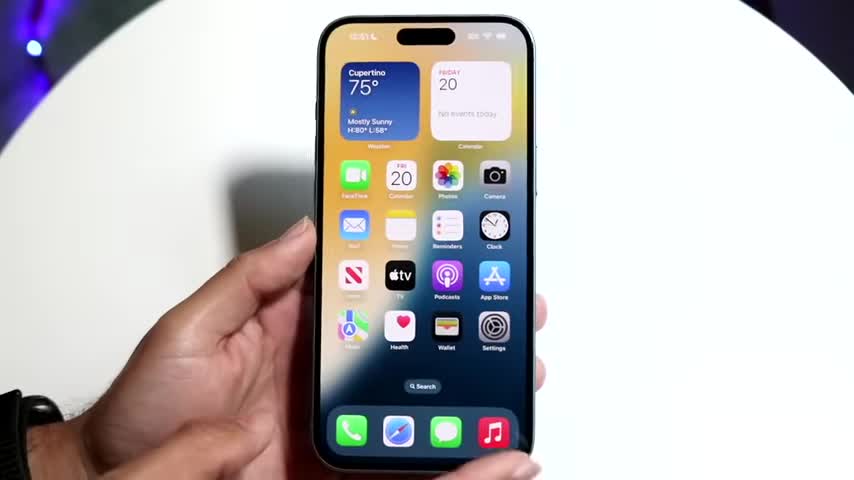
Now, when you come into your home screen, it’ll look something like this. Now I’m going to go and turn off do not disturb mode for the basis of this video, but this is probably what your lock screen is going to look like. So at the very top, you basically have your cell service provider.
If you have Verizon, TNT T whoever you have it show up right here In the top right corner it basically go and just show you your you know wi signal your battery percentage all that stuff you going to have your date and your time right here as well and any notifications that you have will show up right here so you can tap into those notifications you can customize those notifications as well so you have the type of capability of customizing all those things right inside of this device right here on the bottom you’ll have your toggles now that you can actually customize your flashlight and your camera but you can customize these by actually holding down on your lock screen like this and you can choose different wallpapers if you want to.
You can click on customize if you want to then you can tap on your home screen or lock screen whichever you want you want and you can even change your different wallpaper styles. You can go and add widgets to your home screen if you want to. You can change these toggles at the bottom. There’s a lot of capability here so it’s all customizable. I recommend you to just kind of get fun with it have some fun with it and customize your lock screen. So you can click on done in the top right corner.
You can click onto your home screen here and you can drag this bar from the bottom up to get into your home screen. Now this is your home screen wherever you are whenever you come back home it’s going to look like this. There’s different pages you can realistically speak and customize whatever you want to here there’s a lot of stuff here.
Now you can go ahead and move these widgets around wherever you want to you can hold down on a widget and move it to a different page or move it to a different wherever and now with an iOS 18 you can place them wherever you want to. So you can place them here you can place them here same thing with app icons if you want to. You can move an app icon wherever you want to on a different page and it’ll still be there which is actually really really cool.
So if I hold this app icon down you can see I can drop it here and it’s a really cool thing. I’d recommend for you to once again just kind of have fun with it. It’s up to you whichever way you know however you want to customize your phone but it’s a really cool thing now that we have on iOS 18 which is genuinely a very cool thing. The dock always stays the same so you can always just you know add applications here and bring them back out.
You can also click on the search bar here, right here, which will bring up your spotlight search. So you can search for different things. If you’re searching for an application of your iPhone, you can go and find that here, and you can basically have that here. Now, all your applications are stored all the way at the end in your app library. So sometimes an application may not be on your homepage, but it will show up here.
So you can quickly find your application if it’s within a folder, or you can swipe down and see all the applications that are currently on your iPhone. So you can see that here too, which again is a very, very nice thing to have.
swiping back up you can just come back into your home screen by tapping right into here now applications are pretty basic as you can probably tell the phone application is the one to open up your phone app you can call people within this app if you want to go back home you can swipe up with this you know drag and drop bar right there your messages app will show you all the messages this is where you can text people and go back home your app store is where you download applications your camera is where you you know basically take photos it you know kind self as you use this phone you kind of see more and more stuff now if you swipe down from the top left corner where the time is you come into your notification drawer which looks just like your lock screen It show all your notifications here If you swipe back up, if you swipe down from the top right corner, you’ll now get into your control center, which has always been like this.
So this is now fully customized and modified now. So you can go ahead and quickly, you know, change up and down your brightness, your sound, you have different pages within your control center as well. So now you can go and kind of modify this whichever way you want to. You can also hold down on an empty part of your control center and you can click on add a control and you can add specific controls that you want to on your iPhone as well straight from this page.
So if you want to add a specific one, let’s say you want a personal hotspot toggle, you can go and tap onto that personal hotspot toggle and have it right there. So it is really cool. You can customize these and make them bigger or smaller depending on what you want to do.
but the world is your oyster now you can go and kind of you know mess around with this whichever way you want to there’s an endless amount of possibilities you can kind of customize here too so once again i’d recommend just kind of you know going through and kind of messing around with this if you want to power down your phone you have a couple different options too now in the control center you can hold down on that power button right up here so i’m going to try it again you can hold down on that power button right up there and slide a power off and you can power down your iPhone using that.
Clicking cancel, you can come back over here. Now, Safari is a basic application. It’s your web browser, but beyond this app, if you’re in an application, if you want to, let’s say, go into a previous application, well, let’s say we go into settings and we want to go back into Safari.
Well, instead of hopping out of an app and then going back into here, then hopping out of this one, going back into here, you can actually just drag this bar at the bottom back to the other application right here, and you can come back into the previous page. So you can kind of go back and forth between all the applications you’ve been in. So these are the applications you’ve opened, not the applications on your home screen necessarily.
And you can kind of do this instead of having to constantly go up and find the other one. If it’s already in your RAM, if you already open it up, you should be able to see it there, which is genuinely very awesome. On top of that, if you want to see all the applications you have in your home screen or inside of your RAM, you can swipe up and stop right here. And you can view all the applications that you basically have inside of your iPhone right here as well, which again is a very cool thing.
So you can swipe through here. You can go ahead and basically just close out of all your apps if you want to this way, which is genuinely very awesome. And that’s another really cool thing that you have the capability of doing there as well. Now, I don’t know why this little pop-up came up, but if you ever get any pop-ups or anything, read them through. You can close out of them and you can click on the X button if you want to.
iOS is meant to be very, very seamless and be very basic to use kind of so there’s not anything else super crazy you got to be kind of worried about now the camera button is a new iphone 16 feature if you click on it it go and open up the camera now using this camera button is very very basic you can go ahead and click on it if you want to take a photo just like this you can hold it down if you want to make a video so you can hold down that camera button to make a video you can also zoom in and zoom out if you want to by basically dragging this bar right here and making it you know zooming in and zooming out like this now it’s good it’s not like perfect or anything like that but it gets the job done and it’s actually a really nice thing because you can just go ahead and use it like this instead of having having to go like this, which can be a little messy a little bit, doing it via this button is actually a really, really nice thing.
And I actually do like it a lot. So that’s kind of the main feature of the iPhone 16. It’s this new button. If in the future, Apple intelligence is out right now, it’s not out, but once it’s out, you should be able to hold down this power button right up here to actually invoke Siri and Apple intelligence. And that should come up. Siri is still working right now, but you can go and use that now, you know, for now.
But once Apple intelligence come out that’s going to be available in the settings app now you can go and open up the settings application like this and you should be able to kind of customize this a lot further whichever way you want to so i’d recommend if you have any questions or have any thoughts you can always make your way over to your settings click on the search button right up here and you can go through and basically just search up any settings that you’re looking for and that’s a very very basic thing you know if you’re looking for wi-fi bluetooth you know updates you’ll find that stuff right here and then you can go scroll through here and you can kind of specify more settings that you want to update and all your applications are at the bottom right here.
Now one of the big settings I’d recommend you to update to right now is within your general settings. So come right into general, click on software update right here, and I would highly recommend updating your iPhone as soon as you buy it. This is a brand new iPhone I just bought today and is already having an update.
So I would recommend all of you to go ahead and click on update now for your iPhone, whichever iPhone it is, and update your iPhone to the latest version, especially if it’s an iPhone 16. I’d recommend updating this to the latest version that’s available right now because by the time you’re watching this, there’s already new updates, and I would highly recommend going through and updating it as soon as you go ahead and pick one up. So in terms of that, that’s kind of how you use your iPhone 16.
Like I said, put a case on your phone, put a screen protector on your phone, but that’s basically how you use it for the most part. It’s a fairly basic phone. It’s a lovely phone, and you know, I think you made a really good decision of purchasing this device. So that pretty much covers it up there. If you have any other thoughts or questions, let me know in the comment section below. Hit the like button.
That would mean so much, but definitely hit that subscribe button more importantly than everything else i love every single one of you guys hopefully i’ll catch you guys in the next video peace out.
Leave a Reply